
Want a printed copy? Download the PDF guide: PDF
In this guide
- A. Find your work – See your jobs, switch lists and places, and search.
- B. Do the job – Track travel, start work, and use the checklist, notes, photos and parts.
- C. Pause or leave a job – Check out, use more options, put a job on hold, or switch jobs.
- D. Finish the job – Complete the job: closing note, equipment health, time, review.
- E. Add new work – Start new work on the spot with Quick start.
A. Find your work
1. Open your jobs
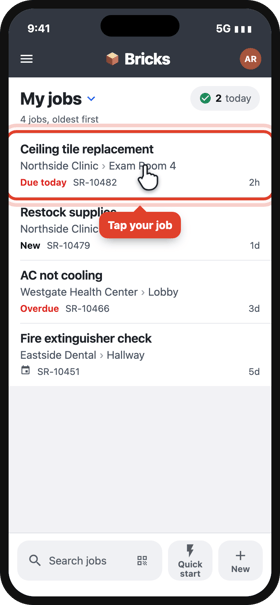
Open Work. My jobs shows the jobs assigned to you, oldest first. Tap a job to open it.
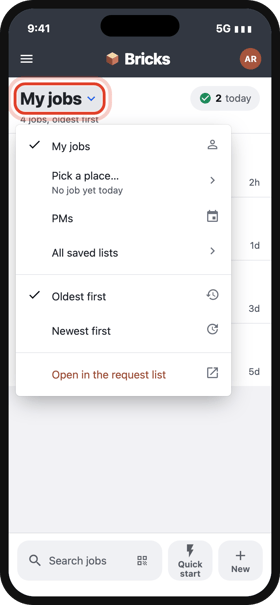
2. Switch lists
Tap My jobs ⌄ at the top to change what you see: My jobs, a place, PMs, your saved lists, or the sort order.
Only your company’s saved lists show here.
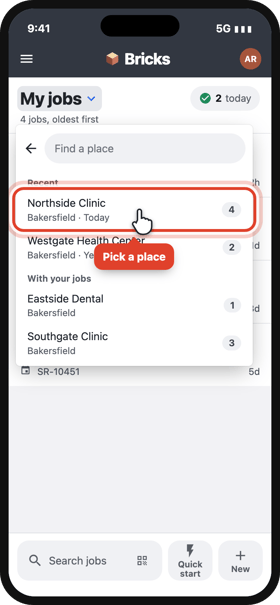
3. Jobs at a place
In the list menu, tap Pick a place…, then search or pick from Recent and With your jobs. The number shows how many open jobs are there.
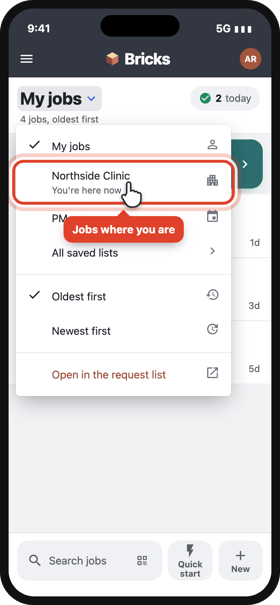
4. Jobs where you are now
After you start a job, the list menu shows that place with You’re here now. Tap it to see every open job there, including new ones that just came in.
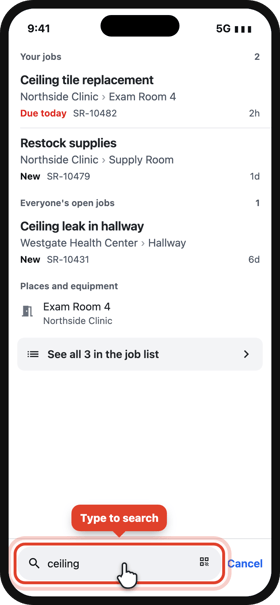
5. Search for a job
Tap Search jobs at the bottom. Type a job name, room, equipment, or SR number.
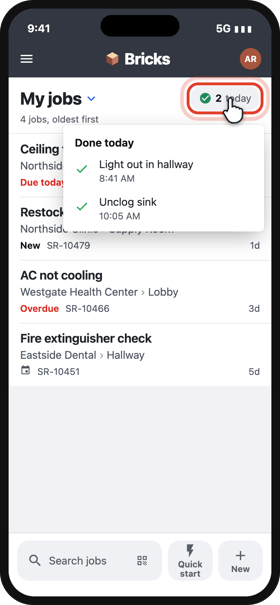
6. What you finished today
The ✓ today badge counts the jobs you completed today. Tap it to see the list.
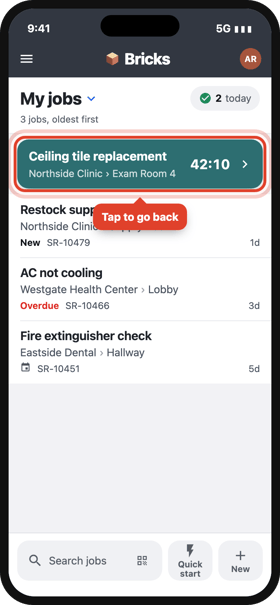
7. Find the job you are working on
A job you are working on shows as a green card with its timer. Tap it to go back to that job.
B. Do the job
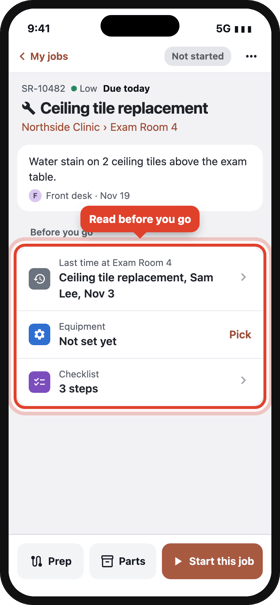
8. Open a job
The job page shows the request, who sent it, and Before you go: the last visit, equipment, and checklist. Tap any row for details.
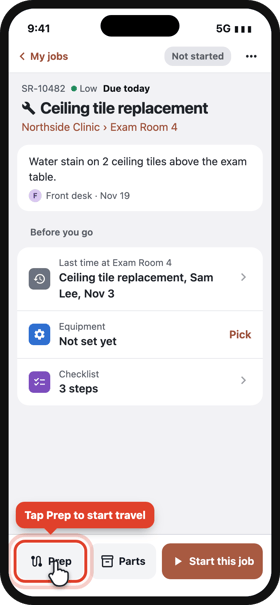
9. Leaving? Tap Prep
Tap Prep when you start driving or go to get parts. This starts your travel time.
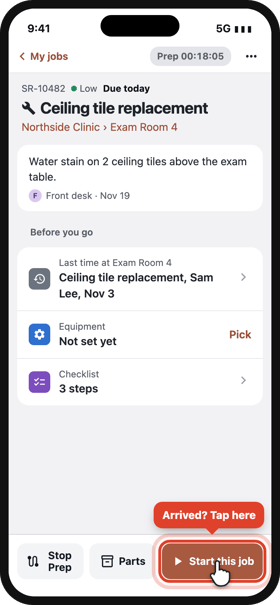
10. Arrived? Tap Start this job
The gray bar shows Prep and your travel time. When you get there, tap Start this job. Travel time stops on its own.
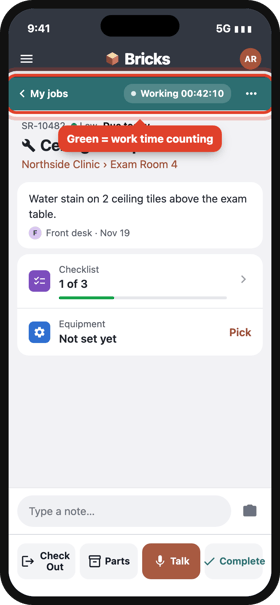
11. Green means working
The bar turns green and says Working. Your work time is now counting.
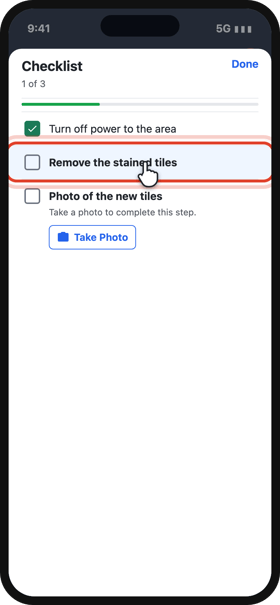
12. Do the checklist
Tap Checklist. Check each step as you do it. Some steps need a number, an answer, or a photo. Tap Done when finished.
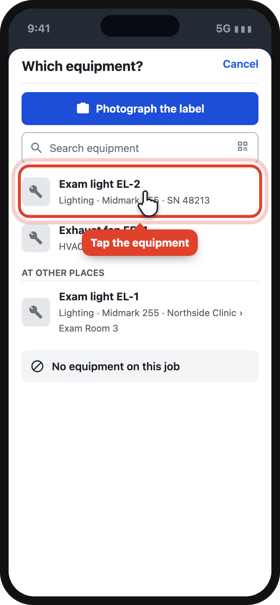
13. Pick the equipment
If the job has no equipment, tap Pick. Search or choose from the list. If there is none, tap No equipment on this job.
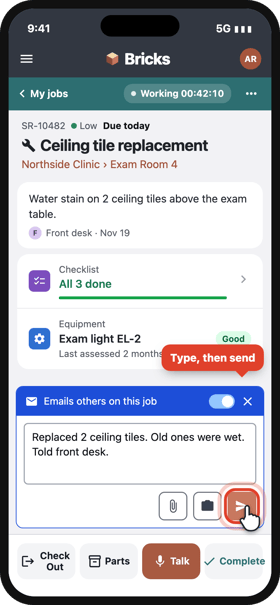
14. Add a note
Tap Type a note…, write what you did, and tap the arrow to send. The bar at the top says who gets an email; use the switch to turn email off.
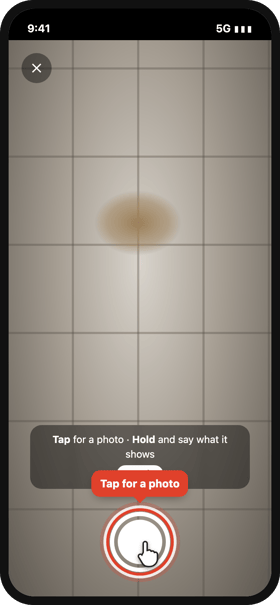
15. Take a photo
Tap the camera. Tap the button for a photo, or hold it and say what the photo shows. Tap × when done. The photos save as a note.
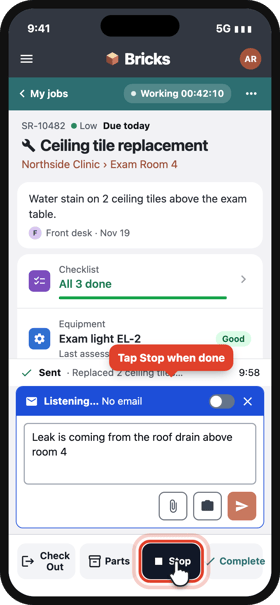
16. Say your note
Tap Talk and say your note. Tap Stop when done, check the words, then tap the arrow to send.
17. Use parts
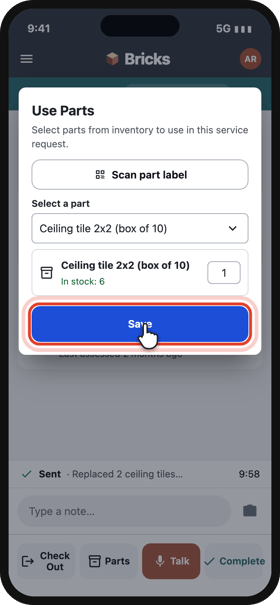
Tap Parts to record parts you used. Scan the part label or pick a part, set how many, and tap Save.
Parts only shows if your company tracks parts.
C. Pause or leave a job
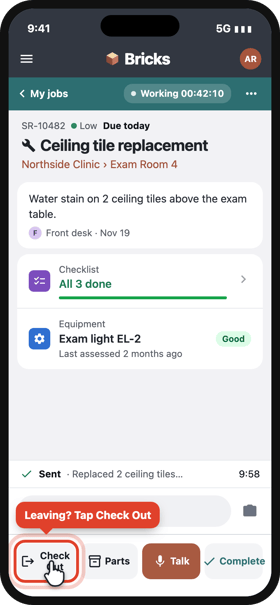
18. Leaving early? Check Out
Leaving before the job is done (meeting, lunch, parts)? Add a note saying why, then tap Check Out. The job stays in My jobs. Open it later and tap Start this job again.
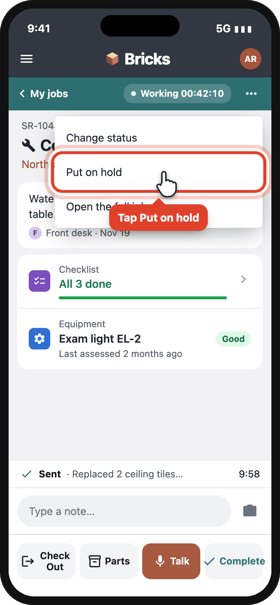
19. More options: •••
Tap ••• at the top right of a job for Change status, Put on hold, or Open the full job page.
Put on hold only shows for some users. If you don’t see it, ask your supervisor.
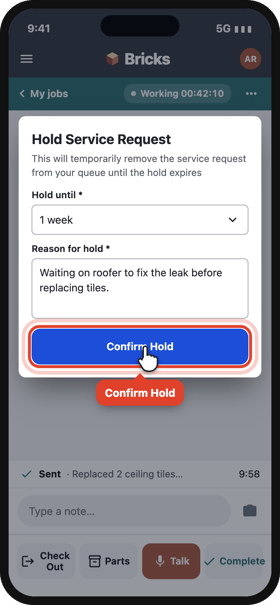
20. Put a job on hold
Choose how long (Tomorrow, 3 days, 1 week, or a date), write the reason, and tap Confirm Hold. The job leaves your list until that day and your reason is saved as a note.
This form is in English only.
21. Starting a different job
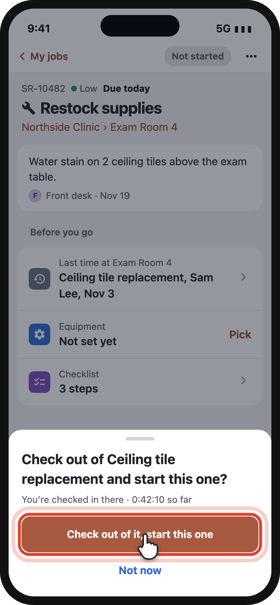
If you start a job while you are still working on another, Work asks first. Tap Check out of it, start this one, or Not now to stay.
D. Finish the job
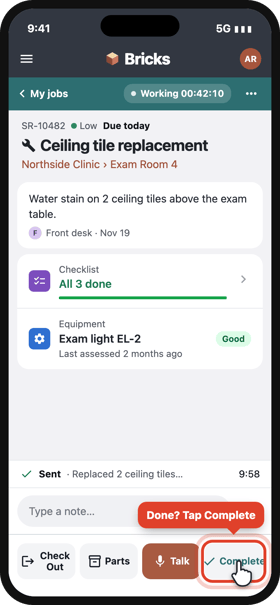
22. Done? Tap Complete
When the work is finished, tap Complete. If the checklist is not finished, Work warns you first.
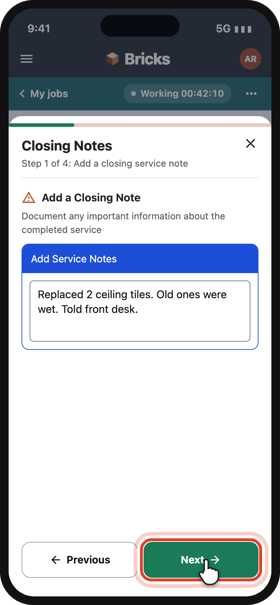
23. Closing note
Write what you did. If you already wrote a note, Work uses your last note. Tap Next.
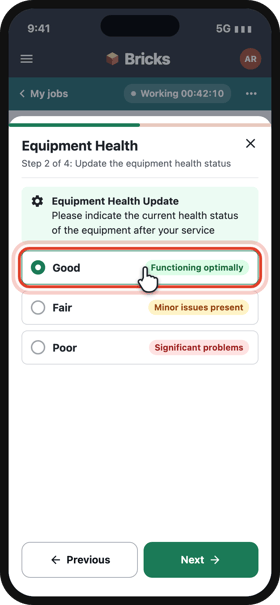
24. Equipment health
If the job has equipment, pick Good, Fair, or Poor for how it works now. Tap Next.
Only shows when the job has equipment.
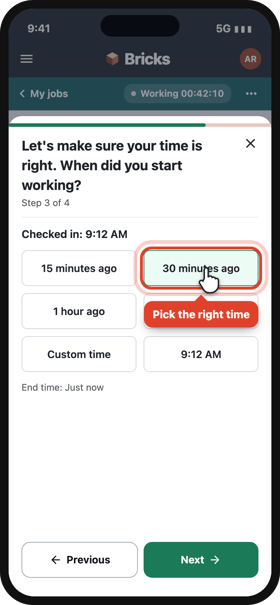
25. Check your time
If your work time looks too short or too long, Work asks when you started. Tap the right time, then Next.
Only shows when the time is under 5 minutes or over 4 hours.
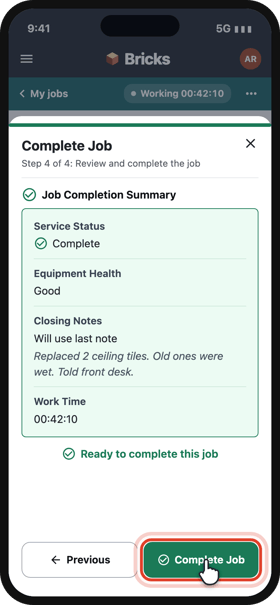
26. Review and complete
Check the summary and tap Complete Job. You go back to My jobs and the job counts in ✓ today.
E. Add new work
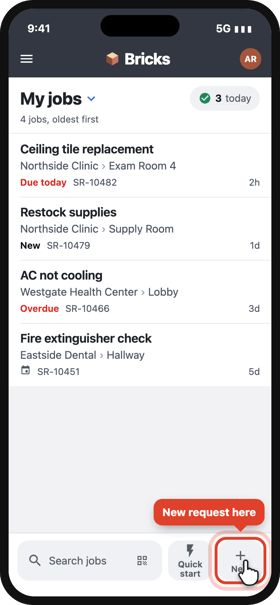
27. Add new work
Found a new problem? Tap New to write a request; it is assigned to you. Quick start creates a job and starts it right away.
Quick start only shows if your company uses it.
Pictures are examples with made-up jobs. Your screen shows your own jobs and places, and some buttons (Parts, Put on hold, Quick start) only show if your company uses them. Questions? Ask your supervisor or your Bricks account team.